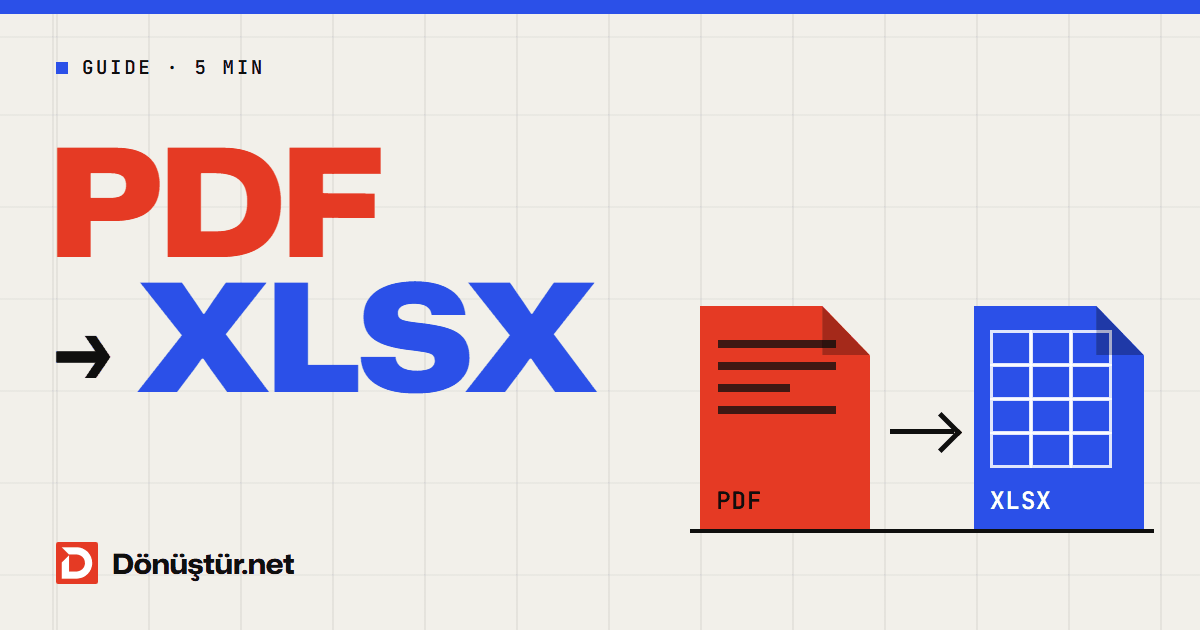
Bank statements, price lists, stock reports, exam results – a lot of tables reach us as PDFs, and as soon as you want to calculate, sort or filter, the PDF is no help at all. If you have ever tried selecting a table and pasting it into Excel, you know the result: the whole row lands in a single cell, or the columns get mixed up.
The right way is to move the tables from the PDF straight into an Excel workbook. This guide explains how to do it, which tables come through cleanly and how to make the numbers calculate again after the transfer.
Convert PDF to Excel in 3 steps
- Open the PDF to Excel converter and click Choose PDF to select your file.
- Click Convert to Excel.
- Click Download file to save your XLSX, then open it in Excel, Google Sheets, LibreOffice Calc or Numbers.
What you will find in the Excel file
The converter writes each page of the PDF to its own worksheet. Every table it detects is placed on the matching worksheet with its rows and columns; the header row is formatted and the cells get borders. Text outside tables is written line by line on the same sheet. The workbook also contains a summary sheet showing the number of pages, tables and text blocks, so you can see at a glance how many tables were found on which page. If a page you expected to hold a table shows none, the data has most likely arrived as lines of text, or the page is a scan – both cases are covered below.
Which tables give the best results?
Digital tables with visible borders
Tables created in a program (Excel, Word, accounting software, online banking) and saved straight to PDF, with visible cell lines, are detected automatically and give the most accurate result.
Borderless tables
When columns are lined up only with spaces, the cell boundaries are not clear, so these rows may be transferred as lines of text in column A rather than as a table. In that case, use Excel’s Data → Text to Columns to split the lines into columns.
Scanned tables
Invoices and statements from a scanner or phone camera are images: they contain no selectable text, so no data can be extracted. Run them through the PDF OCR tool first. After OCR, the data usually arrives as lines of text rather than as a table, and you may need to rebuild the table structure in Excel.
Why won’t the numbers add up?
This is the most common issue: the table is in Excel, but a SUM formula returns 0, or the numbers sit on the left-hand side of their cells. The reason is that the values were transferred exactly as they appear in the PDF – as text. The fix takes a few seconds:
- Select the column. If the cells show a small green triangle in the corner, click the warning icon and choose Convert to Number.
- If there is no green triangle, open Data → Text to Columns and click Finish straight away; Excel reads the values again.
- Watch the decimal separator: UK and US documents write numbers as 1,250.75, while documents from much of continental Europe and Latin America use 1.250,75. If the format in the PDF doesn’t match your Excel settings, values may be misread or stay as text. On the last step of the Text to Columns wizard, the Advanced button lets you set which character is the decimal separator and which is the thousands separator.
Why aren’t formulas included?
A PDF contains only the visible results of a table. When the original spreadsheet was saved as a PDF, its formulas were turned into values, and they cannot be recovered from the PDF. If you want to calculate with the transferred table, you will have to write the formulas again yourself. If you can get hold of the source – say, a colleague made the table – asking for the original Excel file is always the best option.
If you only need certain pages
If only a few pages of a report running to hundreds of pages hold the tables you need, split them off first with the Split PDF tool and convert just those pages. That way your workbook doesn’t fill up with worksheets you don’t need.
Frequently asked questions
Is converting PDF to Excel free?
Yes. The tool is free and works without an account. Guests have a daily limit; a free account raises it.
Are merged cells kept?
In simple tables, yes. In complex tables with headers spread over several rows or lots of merged cells, the cell layout may differ, so we recommend checking the header rows after the transfer.
Does it work with password-protected PDFs?
PDFs with an opening password cannot be read. If you know the password, create an unprotected copy with the Unlock PDF tool first.
Can I turn my spreadsheet back into a PDF?
Yes. Convert the edited table back with the Excel to PDF converter, which also offers options such as fitting the table onto a single page.
Are my files safe?
Files are uploaded over HTTPS. The original PDF is deleted when processing finishes, and the Excel file is automatically removed from the server after about 10 minutes.
Move your table into Excel now
If your PDF table was created digitally, open the PDF to Excel converter and download your editable XLSX in a few moments. Working with a scanned document? Recognise the text with OCR first.