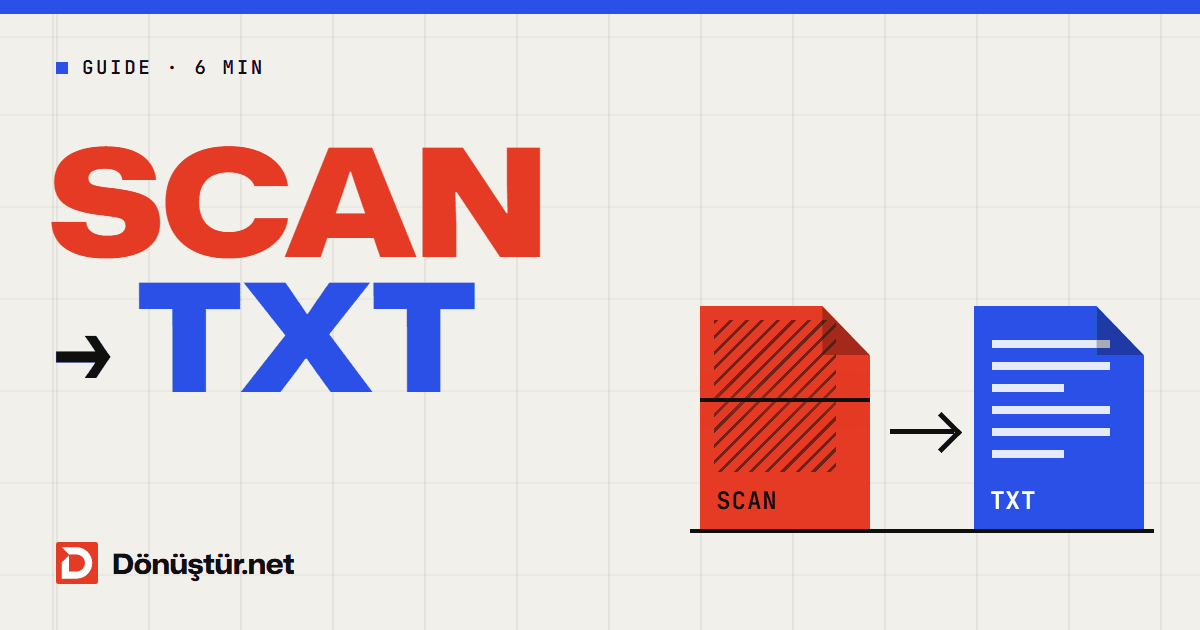
You scanned a contract and now want to find one sentence in it, or you photographed a document and want to copy a paragraph – and nothing happens. Ctrl+F finds nothing and the mouse won’t select any text. That’s because a scanned or photographed document may look like text to you, but to a computer it is just a picture.
The technology that turns the writing in those pictures into real text is called OCR. This guide explains what OCR is, how to make your scanned PDFs searchable and what to watch out for to get the best result.
What is OCR?
OCR (optical character recognition) is technology that recognises the letters in an image one by one and turns them into text a computer can work with. Before OCR, a scanned page holds nothing but pixels; after OCR, every word can be searched, selected and copied.
The PDF OCR tool does not change how your pages look: it adds an invisible text layer behind the original scanned image. What you end up with is a PDF that looks exactly like the old one, but that you can search and copy text from. A searchable PDF is also easier to find later with your computer’s file search, and screen readers can read its text aloud.
Does your PDF need OCR?
Open the document in a PDF reader and try to select a word with the mouse:
- If the word can be selected, the PDF already contains text and doesn’t need OCR. To get the text out, go straight to the PDF to Text or PDF to Word converter.
- If it can’t, or the whole page is selected as one box, the document has been scanned and needs OCR.
Make a scanned PDF searchable in 3 steps
- Open the PDF OCR tool and click Choose PDF to select your scanned document.
- Click Recognise text. Each page is processed separately at 300 DPI, so the time grows with the number of pages; documents of a few pages are ready quickly.
- Click Download file to save your searchable PDF. You can now search it with Ctrl+F and copy its text.
The tool recognises English, Turkish, German, Spanish and Italian text – you choose the document language before converting. Up to 50 pages can be processed in one run. If your document is longer, split it into parts with the Split PDF tool and run each part separately.
Scanning tips for the best results
How well OCR works depends largely on the quality of the image. To reduce recognition errors:
- Scan at 300 DPI or more. If your scanner lets you choose the resolution, 300 DPI is enough; at lower resolutions, small letters start to run into each other.
- Place the page straight. Letters on skewed lines are more likely to be misread.
- If you use your phone, photograph the document in good light, without shadows and from directly above, and make sure the edges of the paper are in the frame.
- Black and white or greyscale scans often give cleaner results than colour ones.
- Save as PDF from the start. Most scanners and phone scanning apps can save straight to PDF, which keeps all the pages together in one file, ready for OCR.
The limits of OCR
OCR is a powerful tool, but it doesn’t recognise everything perfectly. Worth knowing:
- Handwriting: Accuracy is high for printed text; with handwriting, the result depends heavily on how legible it is.
- Other languages: Recognition supports English, Turkish, German, Spanish and Italian, and English is always recognised as a second language. Accented letters from other languages may be misread, and documents in other scripts (such as Arabic or Cyrillic) are recognised much less reliably.
- Formatting: OCR recognises text but doesn’t rebuild tables, columns and fonts the way a Word document would. You may need to tidy up the text after copying it.
- File size: Pages are re-rendered at high resolution, so the output can be larger than the original.
Tip: if the OCR’d PDF comes out large, you can shrink it with the Compress PDF tool. Compression only downsizes the images; the text layer you just added is kept.
What you can do with the text after OCR
- Search: Find the phrase you need in a long contract or a scanned book in seconds.
- Quote: Copy a paragraph into your email or report without retyping it.
- Text file: Export the recognised text as a TXT file with the PDF to Text tool.
- Archive: Keep scanned documents as searchable PDFs and find what you need even years later.
Frequently asked questions
Is OCR free?
Yes. The tool is free and needs no sign-up. Because OCR takes a lot of processing on the server, guests get a few runs per day; a free account raises the limit.
Can I recognise text in my photos too?
The tool works with PDF files. Combine your JPG, PNG or iPhone HEIC photos into a single PDF with the JPG to PDF converter first, then run OCR on it.
Why is the recognised text wrong in places?
Errors usually come from blurry, skewed or shadowy scans. Rescan the document straight, at 300 DPI and in good light, and try again.
Are my files stored?
No. The PDF you upload is deleted when processing finishes, and the OCR’d file is automatically removed from the server after about 10 minutes.
Make your scanned document searchable now
Open the PDF OCR tool, upload your scanned document and download a PDF you can search and copy text from.