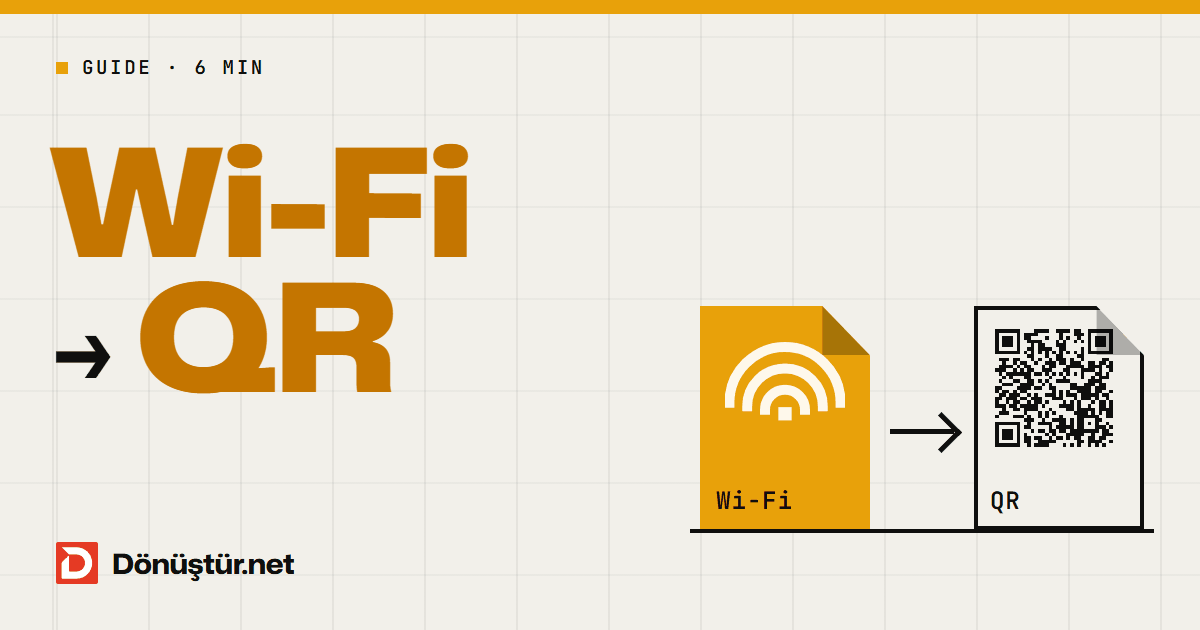
Quick answer: Open the Wi-Fi QR code generator, type the network name (SSID) exactly as it appears on your phone, choose WPA / WPA2 / WPA3 and enter the password. Pick Table card as the output and click Create QR code: you get an A4 PDF with four cards and cut lines. Before printing, test the code with an iPhone and an Android phone. It is free, needs no account and your password never leaves your device.
In a café, the same question comes from every table: “What's the Wi-Fi password?” At home it is no better; nobody enjoys reading out a 20-character router password letter by letter. A Wi-Fi QR code turns that into a single card: your guest points the camera at it, taps the prompt to join and is online without typing anything.
How a Wi-Fi QR code works
The code carries the network name, security type and password as a standard line that phones understand: WIFI:T:WPA;S:network name;P:password;;. When the camera reads that line, it offers to join the network. There is no web address inside, so joining does not depend on our site or any other service.
That is why the code never expires and nobody can track who scans it. The one limit: it is fixed. If you change the router password, the old card stops working and you need to print a new one.
Step by step: a Wi-Fi QR code and table card
- Type the network name exactly: Enter the SSID as it appears in your phone's Wi-Fi list. Upper and lower case, spaces and special characters must match; one wrong letter and phones will not find the network. If the name is not broadcast, tick Hidden network.
- Choose security and enter the password: For most routers today, WPA / WPA2 / WPA3 is right. WEP (old) is only for very old equipment; for an open network, choose No password.
- Set up the card: Choose Table card, add a heading (for example “Guest Wi-Fi”) and, if you like, a note such as “Table 5”. Tick Also print the password on the card only if you want it written out; when it is off, the card shows just the network name.
- Check the print settings: Set error correction to Q or H so the code still scans if it gets scratched or catches the light. Keep the code dark and the background light.
- Create, test, print: Click Create QR code, open the PDF on screen and scan it with two different phones to make sure they actually connect. Then print the A4 page at 100% scale and cut along the lines.
If you only need the code itself, choose PNG (for messages and slides), SVG (for design software and print shops) or PDF.
Café, home or office: what to use where
| Place | Suggestion | Watch out for |
|---|---|---|
| Café or restaurant | A table card on every table, matte laminated | Print only your guest network |
| Hotel or B&B | Room card or reception; print the password too | Laptops and TVs that cannot scan QR codes need the written password |
| Office or waiting room | A separate visitor network, card in the meeting room | Never put the staff network on a card |
| Home | A small card on the fridge or by the door | Do not stick it where passers-by can see it |
| Event or classroom | Show the PNG on the projector | Codes scanned from a distance must be large (see below) |
A rule of thumb for size: the side of the code should be about a tenth of the scanning distance. On a table, 2–3 cm is enough; for a poster scanned from 2 metres, aim for around 20 cm. The code on the table card is 7 cm.
Set up a guest network first
A Wi-Fi QR code does not hide the password. Even if the card does not print it, anyone who scans the code can find it out, and many phones show the password in their settings once connected. So in cafés, offices and clinics, make the card for a separate guest network, not your main one. Most routers offer this in their admin page, usually called “Guest network”; where it sits depends on the brand.
Scanning on iPhone and Android
- iPhone: From iOS 11, the Camera app recognises Wi-Fi QR codes and shows a prompt at the top of the screen. The Code Scanner in Control Centre works too.
- Android: From Android 10, the camera or Google Lens reads the code and shows a connect button. On Samsung phones, QR scanning may need to be switched on in the camera settings.
- Older phones: Older versions may need a separate QR reader app.
- Company networks: Networks that ask for a username and password (WPA2-Enterprise) do not support joining by QR code.
Seeing the password inside a code
If you need to type the password from your router label or from your phone's “Share” screen into a laptop or TV, drop the image on the Wi-Fi QR code reader: the network name, security type and password appear on separate lines, and the password stays hidden until you press “Show”. The page does not crack anything; it only shows what is already written in the code. Use it only for your own network or one you are allowed to use; connecting to a network without permission is an offence in many countries.
It scans but will not connect
- Different network name: One letter, a space or a capital letter in the SSID is enough to block the connection. Compare it with the phone's Wi-Fi list.
- Password changed: If the router was reset or the password updated, the code still carries the old one; make a new code.
- Phone does not support WPA3: An older phone cannot join a WPA3-only network, with or without a QR code.
- Code will not scan: Glossy lamination, tiny prints and low-contrast colours make scanning harder. Print it larger, use a matte finish and go back to black and white.
Privacy
The QR code is drawn in your browser; your network name and password are not sent to our server or stored. The page opens with a strict security policy that technically blocks it from connecting anywhere else, and no ads or analytics run on it.
Frequently asked questions
Does a Wi-Fi QR code expire?
No. The network details are inside the code itself; it does not depend on a website, account or subscription. You only need a new code if you change the password or network name.
How many people can use the same code?
The code has no limit; every phone that scans it gets the same details. How many devices can connect at once is up to your router.
Can I share Wi-Fi without showing the password on the card?
Yes, that is the default: the card shows only the heading and network name, and the password is only inside the code. Anyone who scans it can still find the password, so use a guest network.
Can I put a menu QR code on the same card?
Yes. Make a separate code in the QR code generator using the “Link” type. Leave at least 1 cm between the two codes and label which is which.
Does it work with a WPA3 router?
In most cases, yes: the “WPA / WPA2 / WPA3” option covers all three, and current phones choose the right method themselves.
Is it free?
Yes. The tool is free, needs no sign-up, and the code is created entirely on your device.
Make your card now
Got your network name and password? Open the Wi-Fi QR code generator, choose the table card and stop spelling out passwords to guests.