The letting agent wants your last three payslips; a new employer wants a bank statement. Before sending, you draw black boxes over your account number, your National Insurance or Social Security number and your phone number. On screen it all looks covered. But has the information actually left the file?
Quick answer: Often, no. A box drawn in an ordinary PDF editor, in Word or with your phone’s markup tool usually just sits on top; the text underneath stays in the file and can be copied and pasted. To remove information for good, use a tool that does real redaction, such as the Redact PDF tool, then test the result yourself.
Why a black box may not be enough
A PDF isn’t a photograph. In a text-based PDF, every character is stored as text, and a box added with an editor goes on as a new layer on top of it. Your eyes see the box; a computer still reads the letters underneath. The same goes for:
- Black highlighting or shapes in Word: save as PDF and the text still goes into the file.
- Drawing tools in PDF readers: pens, boxes and highlighters are usually separate layers. The coloured box in our own PDF editor works this way too, which is why we say not to use it for confidential information.
The one-minute test: did your redaction work?
Open the file in any PDF reader, including the one built into Chrome or Edge:
- Search: press Ctrl+F (Cmd+F on a Mac) and search for part of what you hid, say the last four digits of your account number. If it’s found, it’s still in the file.
- Copy and paste: select the line under the box and paste it into a plain text editor such as Notepad. If the hidden text appears, it wasn’t redacted.
- Move the box: open the file in an editor and click the box. If it can be moved or deleted, whatever is underneath is still there.
If any of the three reveals the information, don’t share the document as it is.
What real redaction does
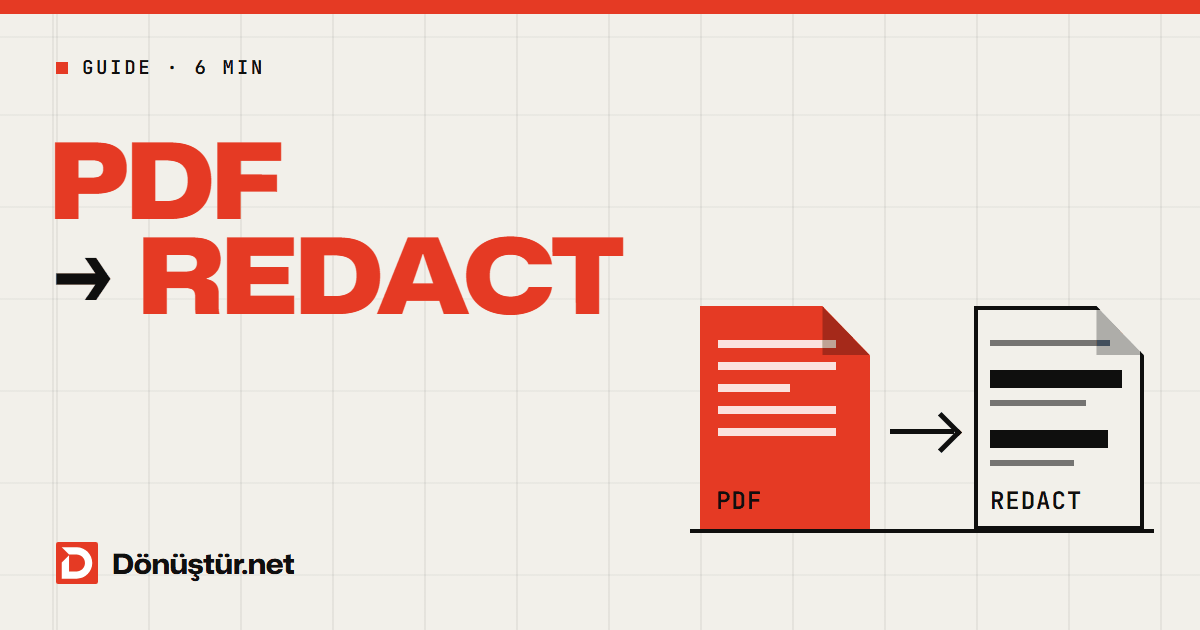
In real redaction the box isn’t a cover; it’s an eraser. The Redact PDF tool deletes the text, image pixels and drawings under each area you mark and replaces them with black. Overlapping form fields and comments go too. After saving, it reads the area under each redaction again; if any readable text is left, you don’t get the file, and you’re asked to try again with the area marked a little wider.
Step by step: redacting a PDF
- Keep the original. Redaction can’t be undone. The tool makes a new copy, but store the original somewhere safe.
- Upload the PDF (up to 25 MB). If it’s password-protected, remove the password first with the Unlock PDF tool.
- Choose what to redact. Combine any of three ways:
- Draw boxes: drag over the part you want gone; move or resize a box from its corner. Best for signatures, photos or a table row.
- Type words: in Redact these words, enter names, addresses or numbers separated by commas. Up to 20 terms; every page is searched.
- Find automatically: under Find and redact automatically, tick the details to look for (see below for what works where).
- Clear the document info. Tick Also clear the document info (author, title, creating program); the author field can quietly carry your name or your company’s.
- Click Redact permanently. The downloaded file’s name ends in “_redacted”, so you won’t mix it up with the original.
- Check the result. Run the one-minute test on the new file and look through every page.
What automatic detection finds, and where
Two of the four options are designed for Turkish documents, so check which ones help you:
| Option | What it finds | Where it works |
|---|---|---|
| IBANs | IBANs whose check digits add up (mod-97) | Any country |
| Email addresses | Email addresses in the text | Anywhere |
| Phone numbers (Turkey) | Turkish phone numbers | Turkey only; UK, US and other numbers aren’t detected |
| Turkish ID numbers (TC Kimlik) | 11-digit Turkish ID numbers with valid check digits | Turkey only |
Everything else must be typed as a term or boxed by hand: passport and driving licence numbers, National Insurance and Social Security numbers, your phone number, and the sort code and account number (or routing and account number) that many UK and US statements show instead of an IBAN. Type a number exactly as it appears on the page, spaces included, and confirm with Ctrl+F afterwards.
Automatic detection is a helper, not a guarantee. If none of the terms or details you chose are found, the tool tells you and redacts nothing, which is common with scanned documents.
Redacting scanned PDFs
Scanned pages are images with no searchable text, so typed terms and automatic detection find nothing on them. Draw boxes by hand instead: the pixels inside them are deleted. Not sure whether your file is scanned? Try selecting a word with the mouse, as explained in our guide to OCR and scanned PDFs.
What to redact in which document
Ask one question: what does the other person actually need from this document? Hide the rest.
| Document | Often safe to hide | Careful |
|---|---|---|
| Bank statement as proof of payment | Account number, sort code or IBAN, balance, unrelated transactions | The date, amount and payee are the proof; leave them visible. |
| Payslip | NI or Social Security number, employee and tax references, bank details | If they need proof of income, hiding your pay makes it useless. |
| Tenancy agreement | The other party’s phone number, previous addresses, ID numbers | For an official process, the complete document may be required. |
| Official letters and certificates | Reference numbers and details nobody asked for | Blacking out a barcode or verification code can stop the recipient checking it’s genuine. |
If a whole page isn’t needed, such as a passport copy attached at the end, remove it with Delete PDF Pages rather than blacking it out.
Data minimisation: share no more than needed
One of the core principles of the EU’s GDPR, mirrored in the UK GDPR, is data minimisation: personal data should be “adequate, relevant and limited to what is necessary” for the purpose. In practice: a letting agent doesn’t need your account number to see that you can pay the rent. If you send customer or employee documents to third parties for a business, redaction is one part of handling personal data carefully, not compliance on its own; follow your organisation’s policies too. This is general information, not legal advice.
Final check before you share
- The original is somewhere safe.
- You’ve looked through every page of the redacted copy.
- Ctrl+F for part of each hidden number finds nothing.
- You cleared the document info.
- If it’s still sensitive, you’ve added a password with Protect PDF.
Does the document need your signature too? See how to sign a PDF.
Frequently asked questions
Can redacted information be recovered?
No. The deleted text and pixels aren’t in the new file, which is why you keep the original and share the redacted copy.
Will the IBAN option catch my UK or US account number?
Only if it’s written as an IBAN. Sort codes, routing numbers and plain account numbers aren’t detected; type them in Redact these words or draw a box over them.
Are my files stored?
No. The uploaded PDF is deleted once processing finishes; the redacted PDF is kept only for download and deleted automatically within about 10 minutes.
Is it free?
Yes, with no account needed. Guests have a 24-hour usage allowance per tool; a free account raises it.
Clean it up before you send it
About to send a statement, a payslip or a contract? Open the Redact PDF tool, mark what should go, and test the downloaded file with Ctrl+F before you hit send.